
How it works
ActivityHero normally connects directly to the internet, so check-ins and check-outs are automatically recorded in real time. Offline Mode allows you to record attendance even when you don’t have an internet connection. While offline, ActivityHero stores attendance information locally on your device.
Once your device reconnects to a stable internet connection, ActivityHero automatically detects it and syncs all check-in and check-out data.
Connection Status

The cloud icon shows your connection status to ActivityHero:
- A cloud with a check mark means your device is connected and syncing information.
- A cloud with a line through it means your device is offline, and attendance data is being stored locally until the next sync.
Storage and Syncing
Because ActivityHero stores some information on your device, it’s important to stay near an internet connection for a few minutes after turning on Offline Mode. This ensures that features like authorized check-ins and check-outs are ready for offline use.
Offline Mode stores attendance information on your device for the current day. To ensure that your data stays accurate and up to date, ActivityHero only allows you to load one day of attendance at a time while offline. Connecting to the internet daily allows your device to sync the latest information and prevents outdated data from being used.
While your device is in Offline Mode, new registration data will not sync to the Check-in & Check-out page. For example, if a new participant is added to ActivityHero from another connected device, an offline device will not display that new participant until it reconnects and syncs.
Enable Offline Mode
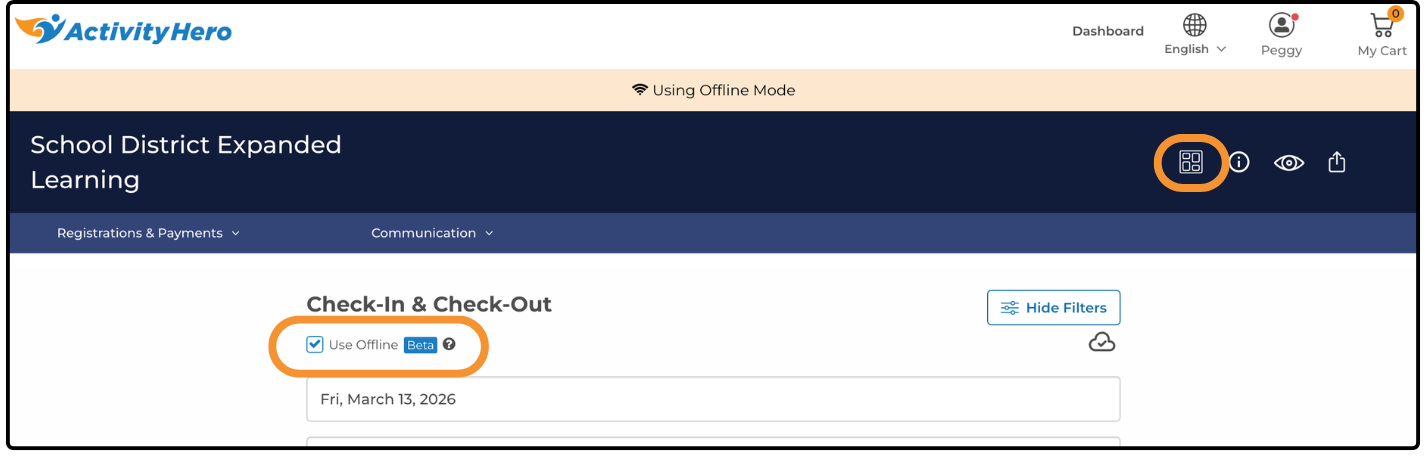
To enable Offline Mode on your device:
- From your dashboard, click the Dashboard icon at the top.
- Select Check-in & Check-out.
- At the top of the page, check the box next to Use Offline.
- Save the data for date and location by clicking Confirm.
.png?width=314&height=253&name=Offline%20Mode%20(5).png)
Once enabled, an Offline Mode banner will appear at the top of your screen.
Currently Unavailable in Offline Mode
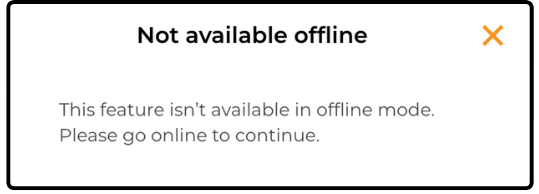
The following features are not available while using Offline Mode:
- Changing dates
- Changing locations
- Navigating to other pages without internet connectivity
- Adding authorized pick-ups
Tracking Attendance
The steps to filter the participant list and record check-ins or check-outs are the same whether your device is online or offline. For detailed instructions, visit our help article: How Do I Track Attendance in ActivityHero?